
How to Import Your Master Data Using cieTrade Templates
These import tools allow users to upload large quantities of new contacts, companies, and products into the system in a batch instead of entering them one by one manually onto the database.
Contact Import Tool
The Contact Import tool can allow users to quickly import new contacts (individuals that work at the companies they are doing business with) into the system. It supports the import of large quantities of people and contact information, which can make entering enormous amounts of data into the system a breeze!
Finding the Tool
1. Go to Accounts > Contacts to open the Contact Manager.
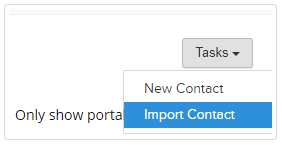
 2. Click Tasks > Import Contact.
How to Add New Contacts
1. Download Template: Open the tool, check Empty Template in the left corner, and click Download Data to get the Excel file.
 2. Fill Details: Enter your data. Only First Name and Last Name are required, but adding Company and Email is recommended.
3. Upload: Click Browse to select your saved file, then click Import Data in the right corner.
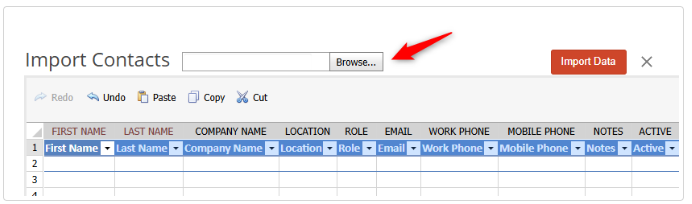
NOTE: If you include a Company Name, Location, or Role, that information must already exist in cieTrade for the upload to work. Manage roles via Settings > Common Information > Contact Roles.
How to Update Existing Contacts
1. Export Data: Open the tool and use the Contact Filters to isolate specific companies, locations, or roles. Click Download Data to generate your current contact list.
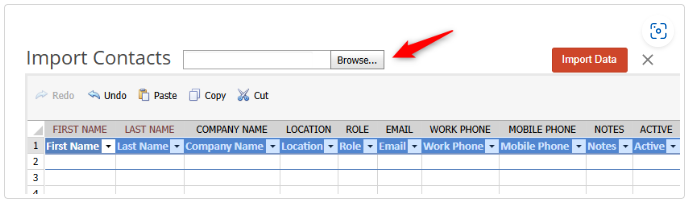
 2. Edit & Re-upload: Make your bulk changes directly in the generated Excel file, save it, click Browse... on the import tool, and select Import Data.
Flagged Cells & Common Issues
If formatting errors or invalid data prevent your upload, specific cells will be flagged. Click Import Data to run the validation check; the system will automatically inject a comment directly into any flagged cell explaining exactly what needs to be fixed.
 For more information, please refer to the Contact Import helpfile.
Counterparty Import Tool
The Counterparty Import tool allows you to quickly bulk upload new companies (Customers, Suppliers, Vendors) or update existing ones in cieTrade using an Excel template or the online spreadsheet interface.
Finding the Tool
- Navigate to the Counterparties tab.
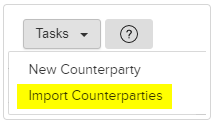
- Go to Tasks > Import Counterparties.
How to Add New Counterparties
In-Template Method:
1. Download Template: Open the tool, check Empty Template in the left corner, and click Download Data to get the Excel file.
 2. Fill Details: Enter the company details row-by-row into the spreadsheet.
3. Upload: Click Browse to select the file, then click Import Data in the right corner.
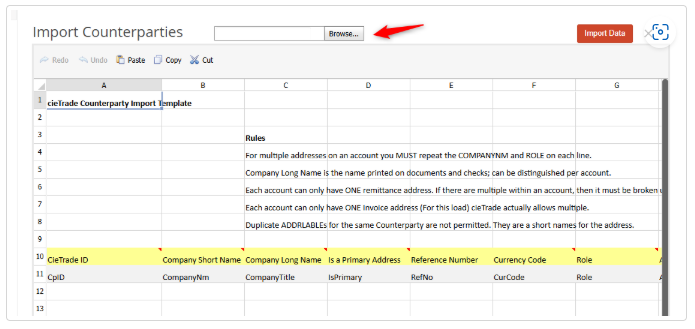
In-cieTrade Method:
1. Check Empty Template and click Download Data to get the file.
 2. Click Browse... to open that blank spreadsheet directly within the online interface tool.
3. Type data straight into the visible rows and columns on your screen, then click Import Data.
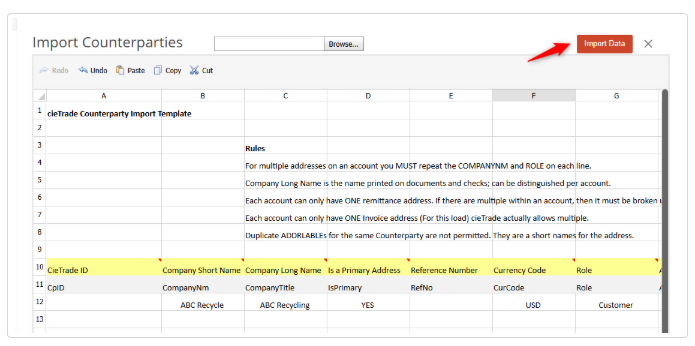
NOTE: Each company and address supports only one main contact through this import. If you need to add multiple contacts for the same business location, you must add them later via the Contact Manager.
How to Update Existing Counterparties
1. Export Data: Open the tool (do not check Empty Template). Use the Counterparty Filters to pull data only for specific companies, locations, or statuses. Click Download Data to generate the Excel sheet.
 2. Edit & Re-upload: Update the company details directly in the file, save it, click Browse... on the import tool, and choose Import Data.
Flagged Cells & Mac Notes
- Flagged Cells: If errors or formatting issues block your upload, click Import Data to run a validation check. The system will automatically add a comment directly onto any flagged cell explaining the error.
- Mac Users: If using a Mac, ensure your scroll bars are visible to navigate the sheet correctly. Go to Apple Icon > System Preferences > General > Show Scroll Bars and set to Always.
For more information, please refer to the Counterparty Import helpfile.
Product Import Tool
The Product Import tool allows you to bulk upload new product profiles or update existing ones in cieTrade using an Excel template rather than entering them one by one.
Finding the Tool
1. Navigate to the Products module.
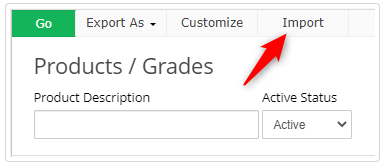
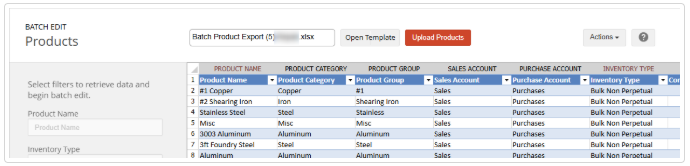
 2. Click the Import button located at the top menu bar (next to Go, Export As, and Customize).
How to Add New Products
In-Template Method:
1. Download Template: Open the tool and click Export Data in the right corner. Select Empty Template > Export to download the Excel file.

 2. Fill Details: Enter product details row-by-row into the spreadsheet columns.
3. Upload: Click the file icon to browse and bring the file into the tool window, then click Upload Products.

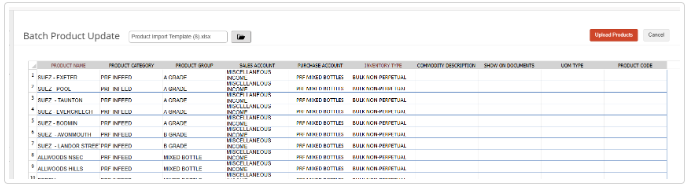
In-cieTrade Method:
- Click Export Data, check Empty Template, and select Export.
- Click the file folder button to select and open that blank spreadsheet directly within the online tool window.
- Type your product details directly into the available fields onscreen, then click Upload Products.
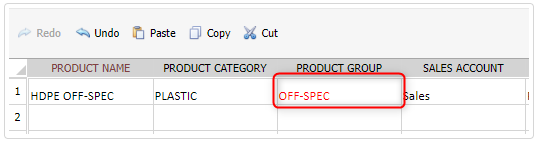
NOTE: If you include a Product Group or Category, that information must already exist in the system for the upload to work. Manage these groups via Settings > Common Information > Product Group/Category.
How to Update Existing Products
1. Export Data: Open the tool. Use the left-hand filters to pull data only for specific products or inventory types. Click Download Data to generate an Excel sheet of your current products.
 2. Edit & Re-upload: Make your bulk changes in the generated Excel file and save it. Click Open Template on the import tool to select your file, then click Upload Products.

Flagged Cells & Common Issues
- If formatting issues or missing category data block your upload, click the Import Data button to run a validation check. The system will automatically add an explanatory comment directly into the flagged cells detailing what needs to be fixed.
For more information, please refer to the Product Import helpfile.