
How to Use the Apply Charges Feature
The Apply Charges feature allows you to apply standard expenses in bulk to worksheets without them being factored into the unit cost of your inventory. Here is a guide on how to set up and use this tool.
First, enable the feature under Settings> Preferences> check Service Module> click Save.

Setup:
- Navigate to Accounts > Counterparties > Charges and create a New Charge.
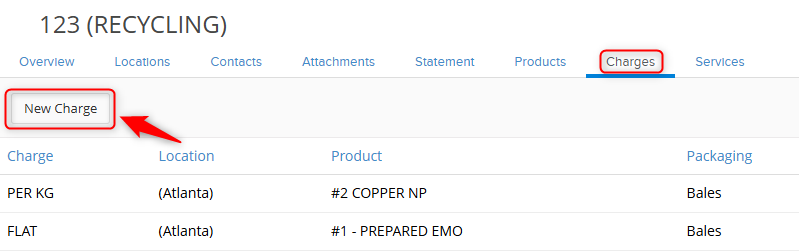 Enter the charges needed. These can be flat or per weight charges, and can be tied to specific counterparty location, product, packaging, and equipment type if necessary. The more fields you select, the more restrictive the load will be to be eligible for the charge. For example if you enter a flat charge for the location, with no other filters, this charge will apply for every single load that comes into the yard. If you do a flat charge for the location, but only with #2 Copper, only receiving tickets for that supplier, location and that has #2 copper listed on the receiving ticket will have this charge applied.
 Enter the charges needed. These can be flat or per weight charges, and can be tied to specific counterparty location, product, packaging, and equipment type if necessary. The more fields you select, the more restrictive the load will be to be eligible for the charge. For example if you enter a flat charge for the location, with no other filters, this charge will apply for every single load that comes into the yard. If you do a flat charge for the location, but only with #2 Copper, only receiving tickets for that supplier, location and that has #2 copper listed on the receiving ticket will have this charge applied.
Note: These are staged expenses that you expect to accrue and apply at the end of the month. The set up is done on the counterparty, they are edited on the Pick Up charges inquiry, and applied on the Applied charges Inquiry. 

3. Once all of the details are entered, click Save.
Using the Apply Charges Feature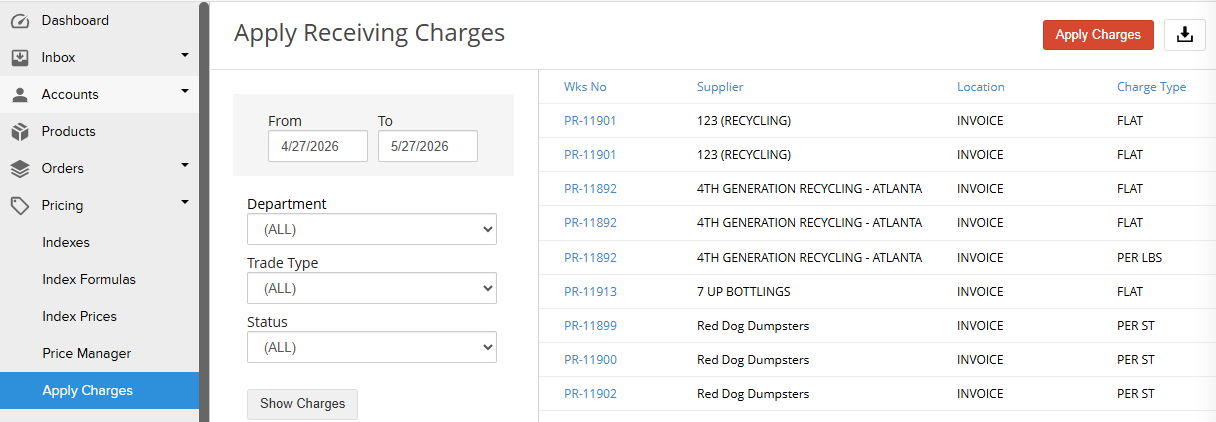
- Navigate to Pricing > Apply Charges. All worksheets that match the requirements listed on the service charges you set up will appear on this page.
- Note: these charges will create a receivable for you to invoice the supplier for since these are charges to the supplier. If you are paying the supplier for these services, enter them as negatives on the Charge set up instead.
- Click the Apply Charges button to create payable on the listed worksheets.
- Note: It is recommended that you run those tool once per month to avoid duplicating any charges.
- If you want to apply charges at the Receiving ticket level, click More Actions> Apply Charges. They will only appear here if the charge is set up as 'do not auto populate'
 4. Once the Charge is applied if you go back to the PR you will see it listed as an adjustment on the Receiving Ticket. To confirm, this means it is generating a payable to the supplier but it will not be factored into the cost of the inventory items on the Receiving Ticket.
 Often clients that use this feature also use Reverse Billing. In that use case, when Reverse Billing is run, these charges will show with the material cost to the supplier for the same loads.
If you have additional questions, please contact the Support Team via email to support@cietrade.net.