
How to Delete Worksheets
This article walks users through the steps to delete various types of worksheets in cieTrade.
1. How to Delete a Receiving Worksheet
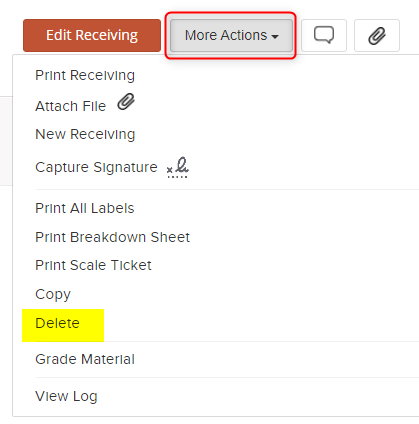
Before you are able to delete any worksheet there are a few areas to check in your database. If the delete option under More Actions is not visible, this can be for a few reasons.
1. The receiving worksheet has payables that have been posted to your accounting system.
2. The received products have already been pulled onto a shipment or converting job.
3. The worksheet is not in a WORK status.
Begin by navigating to the expenses tab of your worksheet. This is where you can find if the worksheet has posted payables against it. The Batch # column will appear with a posted batch number for the payables.

 To be able to delete your worksheet, you will first need to undo the applied batches. This can be done by clicking into the batch number and selecting "undo batch". This can be done only if the payable has NOT been paid from your accounting software.
 If you are still unable to delete your receiving worksheet after undoing your payables, it is likely that the received inventory items have been applied to either a shipping worksheet or converting job. In order to check if your products have been applied to a shipping worksheet or converting job, you can click into the hyper linked item number on the receiving worksheet. This will bring you to the inventory item detail screen which displays all the specifications, cost, weight, etc that the product was received in with. The Costs section will show where the worksheet the item was received on or created on, and the transactions section will show which transactions the item has been referenced on.

 If the item number is referenced in the transactions section, it will need to be removed from the worksheet or converting job referenced in order to delete the receiving worksheet.
Once your AP Batch has been undone, and your inventory items removed from transactional worksheets, the option to delete the worksheet will appear within the more actions drop down.
 2. How to delete a Shipping Worksheet
 2. How to delete a Shipping Worksheet
 NOTE: Your worksheet must be in WORK status to delete.
To begin, navigate to the expenses tab to check if any payables from the worksheet have already been posted to your accounting system. If the payables have been posted the Batch # column will be populated with the AP Batch #.

 Once you have undone the batch, the next section to check is if any receivables have been entered for the worksheet. On the worksheet overview page the Invoice section will display a payment section, which indicates if any payments have been received for the shipping worksheet.

If the payment section is displaying $0 payments made against the worksheet then you do not need to worry about this step. If a payment has been received against this worksheet, you will need to undo the cash receipt prior to deleting the worksheet. This can be done from the cash receipts section of the accounting module by simply reversing the payment.
Once all expense and payments have been undone you will need to change the worksheet from an INVOICED status to a WORK status. Within the More Actions tab, you will see the option to delete the worksheet.

3. How to Delete a Converting Job
NOTE: Your Converting Job must be in WORK status to delete.
Similar to the other worksheets, begin by checking if any expenses have been posted from the converting job by navigating to the expenses tab. Once any applicable expenses have been undone change your converting job status from POSTED to WORK.
 If you are unable to change your worksheet from POSTED to WORK, that means that one of your output inventory items have been brought onto either a shipping worksheet, or another converting job. You can click into the blue hyperlinked output inventory items to identify within the transactions section of the inventory detail screen if they have been referenced on another transaction.


Once your worksheet is in a WORK status, remove all input and output material on the worksheet, which will allow you to delete using the More Actions drop down.

If you have additional questions, please contact the Support Team via email, at support@cietrade.net.