
Billing for Fuel Surcharge
cieTrade supports percent-based fuel surcharge fees.
Getting Started
To get started, a specific GL account must be setup in cieTrade for fuel surcharges. An example of what this may look like can be found below.
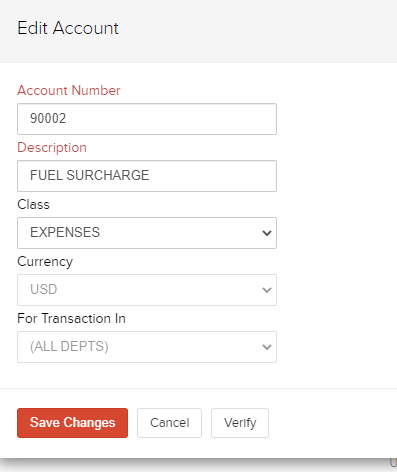
NOTE: You are able to have one account for the Expense and Sales classes. The Description and Account Number should mirror the numbering and naming convention in your accounting system.
Saving and Applying Fuel Surcharges
Fuel Surcharges can be saved at the Counterparty Location level, and are applied on a per location basis.
- Navigate to a Counterparty.
- Select Locations.
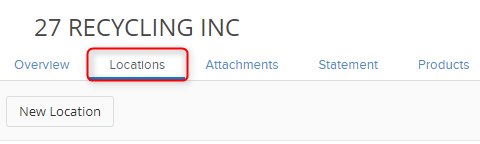
- Select a specific location.
- Enter the amount of the charge (as a percentage) into the BUY side, SELL side, or both.
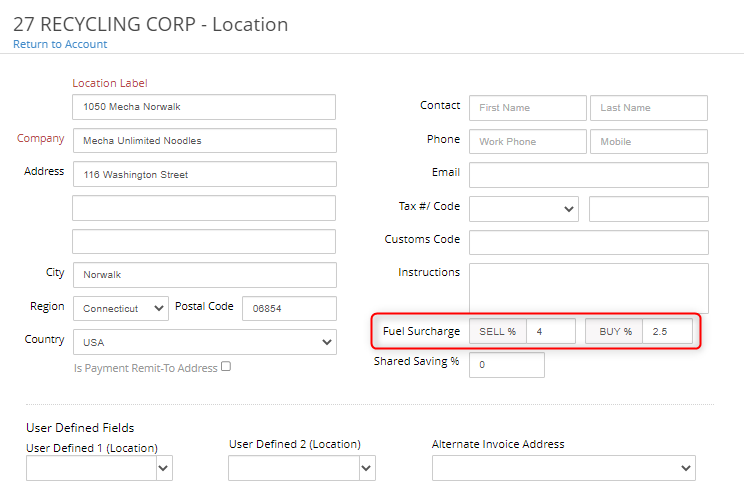
- Once finished, click Save.
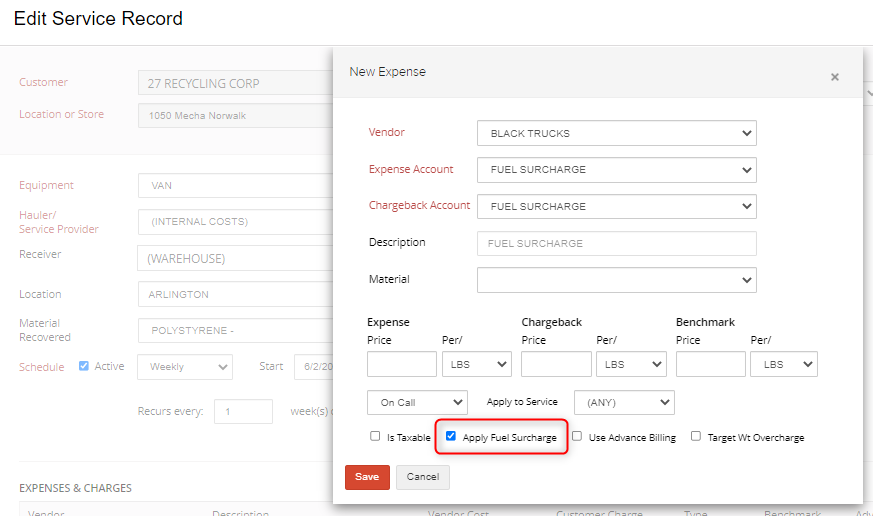
At this point, the Fuel Surcharge is saved and ready to be used. For the Surcharge to be applied, there must be an expense (or more) on the Service Record (or Billsheet) that is denoted as a Fuel Surcharge. This can be achieved by checking off Apply Fuel Surcharge within the Edit Expense popup.
There may be times where the rate of the fuel surcharge changes. Depending on volatility of it, you can account for the change in two ways:
- Update the charge at the Location level.
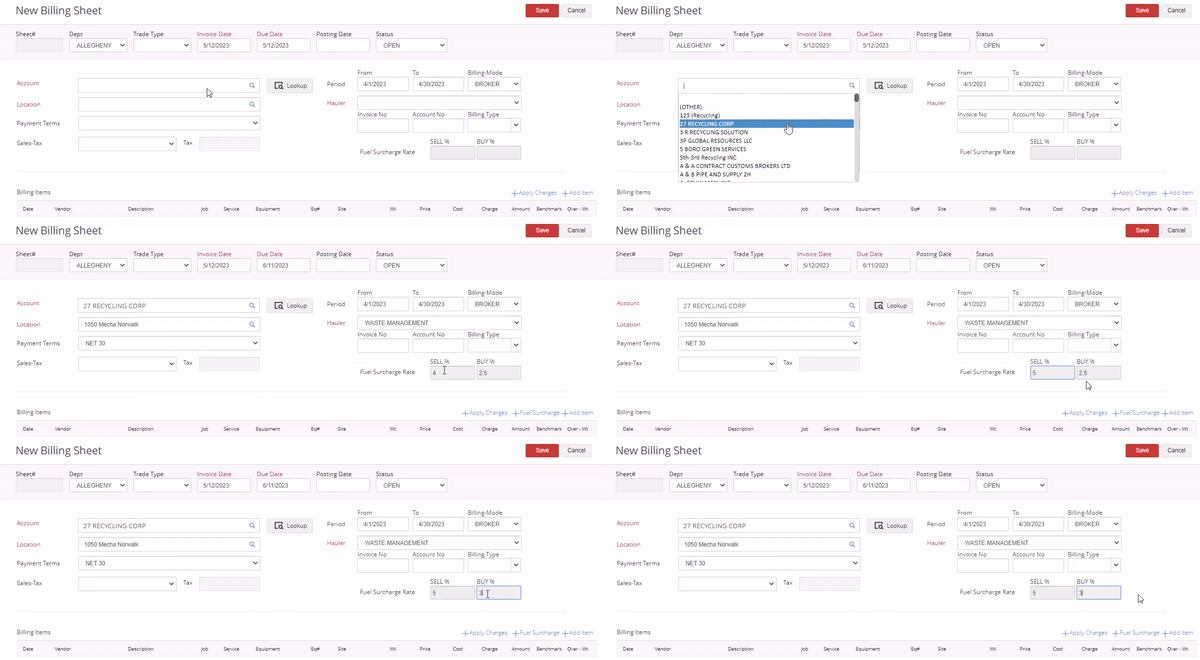
- Update the charge at the Billing Sheet level.
If the change is more permanent, then updating it at the location level will be best, as it will flow to all of applicable billing sheets. If the rate is experiencing ongoing fluctuations, you can adjust the rate at the billing sheet level to accurately capture what you need to pay and/or charge. Making this change at the billing sheet level WILL NOT affect the rate defined at the location level, but instead will replace it on the billing sheet.
If you have additional questions, please contact the Support Team via email to support@cietrade.net.